
Safe zone checker for Reels, TikTok and Shorts
Last updated 2026-10-20
A safe zone is the part of a vertical video that the app's buttons and caption leave clear. For Reels ads, Meta wants at least 14% clear at the top, about 35% at the bottom and 6% per side: 269, 672 and 65 px on 1080 × 1920. TikTok's In-Feed overlay keeps 240, 660 and 120, plus a 180 px column lower right. Google's YouTube zone keeps 288 top, 672 bottom, 48 left and 192 right.
Instagram Reels
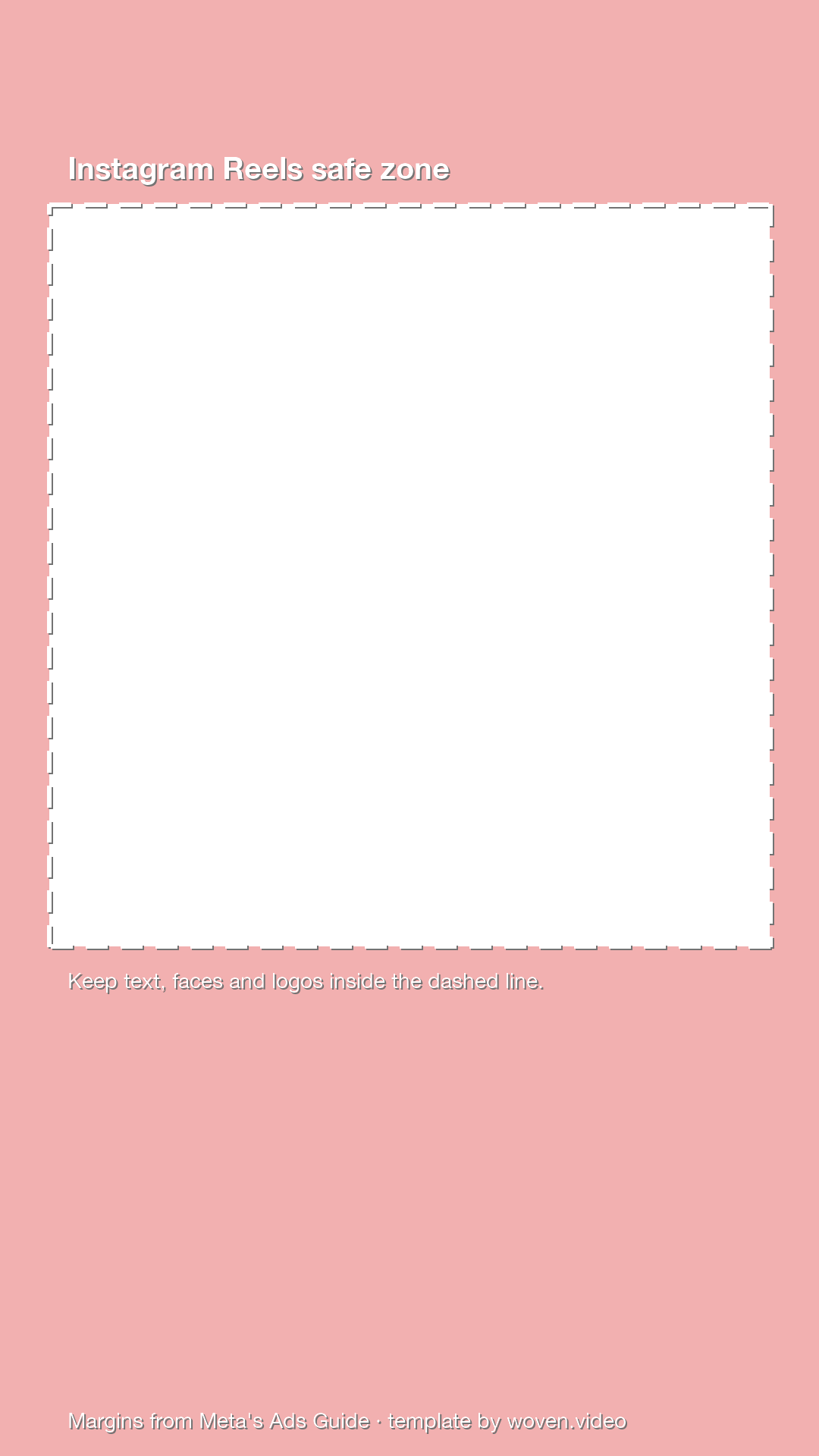
Meta's ad safe zone for 9:16 Reels and Stories on Instagram and Facebook.
- Top: keep at least 14% clear, about 269 px.
- Bottom: keep about 35% clear, about 672 px; 40% if the ad carries a disclaimer.
- Sides: keep about 6% clear on each side, about 65 px.
- Safe area: 950 × 979 px, starting 65 px from the left and 269 px from the top.
Meta states percentages: at least 14% at the top, about 35% at the bottom and about 6% on each side. The pixels are those percentages of 1080 × 1920, rounded.
Safe zones by platform
Each number below comes from the platform's own ad guidance, opened on October 20, 2026. Meta states percentages, so the pixels are worked out for a 1080 × 1920 frame and rounded. TikTok's overlay is labelled in pixels of a 720 × 1280 frame, so its numbers are scaled by 1.5. Google states pixels directly, and they match the transparent overlay it publishes.
Meta's figures cover 9:16 ads in Reels and Stories on Instagram and Facebook. When a Reels ad carries a disclaimer, Meta asks for the bottom 40% to stay clear instead of 35%. It also says that on screens taller than 9:16 it may zoom the ad to fill the screen, which can crop anything outside the safe zone, so keep key things well inside the line.
| Platform | Top | Bottom | Left | Right |
|---|---|---|---|---|
| Instagram and Facebook Reels and Stories (Meta) | 269 px (14%) | 672 px (35%) | 65 px (6%) | 65 px (6%) |
| TikTok In-Feed ads (standard file) | 240 px | 660 px | 120 px | 120 px, and 300 px from 840 px down |
| YouTube Shorts and vertical ads (Google) | 288 px | 672 px | 48 px | 192 px |
| All platforms (the largest margin on each side) | 288 px | 672 px | 120 px | 192 px, and 300 px from 840 px down |
TikTok's safe zone has a notch
TikTok doesn't print its margins in the help text. Its Auction In-Feed ads page offers the safe zone as a downloadable overlay instead. The standard left-to-right file is labelled for a 720 × 1280 frame and marks 160 px at the top, 440 at the bottom, 80 on each side, and a 120 px column on the right that rises 720 px from the bottom edge.
Scaled to 1080 × 1920, that is 240 px at the top, 660 at the bottom, 120 on each side, and a 180 px column that starts 840 px down. So the safe area is not a plain rectangle: its lower right corner is cut away. TikTok adds that the zone shifts with orientation (vertical, horizontal or square), caption length and any added formats, and that its Ads Manager preview can differ from the live ad because it isn't tied to one device.
Ads, organic posts and taller phones
Meta, TikTok and Google publish these numbers for ads. None of the help pages we checked gives margins for ordinary posts. YouTube's Shorts editor shows guide lines near the edges and icons where the like, comment and description controls appear, but gives no measurements.
That makes the ad safe zone the only official measurement, and the safest one to follow for any vertical post. Keep captions, titles, faces, logos and any call to action inside it, and leave the shaded margins for background, motion and the parts of the shot you can afford to lose.
How to use the template
Each template is a 1080 × 1920 PNG, transparent except for the shaded margins and a dashed line around the safe area. It is a guide for editing, not part of the video.
- Put it on top. Place it on the highest video or image track in your editor and stretch it to fill the frame, so your footage shows through the clear middle.
- Edit inside the line. Move captions, titles and any call to action until they sit inside the dashed line.
- Check the busy frames. Scrub to the moments with the most on screen, usually the hook, any list or price card, and the end card.
- Remove it before export. Delete the overlay or turn its track off, so the shading doesn't end up in the finished video.
Keep text inside the safe zone in Woven
Woven doesn't draw platform safe zones on its canvas, so bring the template in as an image while you edit, or give the agent the margins in chat. Text and captions are drawn above every picture lane, so the overlay never hides a caption while you work. Delete the overlay before you export.
Ask in chat
- Keep all text and captions inside the Instagram Reels safe zone: 14% from the top, 35% from the bottom and 6% from each side.
- Move the captions up so they clear the bottom 672 pixels of the frame.
- Render a frame of the hook and check that the title clears the top 288 pixels.
Or do it by hand
- 1Use a vertical canvas. Choose Format, then Vertical 1080x1920, so the template lines up pixel for pixel.
- 2Add the template. Choose Add, then Image, and pick the PNG. Open the Crop tab, set Fit to Fill, and size it to cover the canvas.
- 3Make it last. With the playhead at the start, drag its edge on the Picture track so it runs the length of the video.
- 4Place your text. Drag titles and captions on the canvas until they sit inside the dashed line.
- 5Delete it, then export. Select the template on the timeline, delete it, and export.
Common questions
For Reels ads, Meta asks for at least 14% at the top and about 35% at the bottom and 6% per side to stay clear. Rounded for a 1080 × 1920 frame, those margins are 269 px, 672 px and 65 px.
Google's safe zone for vertical video ads keeps 288 px at the top, 672 px at the bottom, 48 px on the left and 192 px on the right of a 1080 × 1920 frame. That leaves a safe area of 840 × 960 px.
TikTok's standard In-Feed overlay keeps 240 px at the top, 660 px at the bottom and 120 px on each side of a 1080 × 1920 frame, plus a 180 px column on the lower right from 840 px down. TikTok says ad caption length and any added formats also affect it.
Meta publishes the numbers for ads, and its help pages give none for ordinary posts. They are still the only official measurement, so they are the safest guide for any Reel.
Not an official one. The All platforms template takes the largest margin on each side from Meta's, TikTok's and Google's guidance, plus TikTok's lower-right column, so a layout inside it clears all three.
Yes. Each PNG is free to download and use in your edits. Your file never leaves your browser when you check it with the tool on this page.
Sources
- Meta Ads Guide: Instagram Reels video ad specs, checked October 20, 2026
- Meta Business Help Center: About text overlays and the safe zone for ads in Stories and Reels, checked October 20, 2026
- Meta Ads Guide: Facebook Reels video ad specs, checked October 20, 2026
- Meta Ads Guide: Instagram Stories video ad specs, checked October 20, 2026
- Meta Ads Guide: Facebook Stories video ad specs, checked October 20, 2026
- Google Ads Help: Use square and vertical video to engage mobile customers (safe zones for vertical video ads), checked October 20, 2026
- Google Ads Help: About video ad specs (universal safe zones), checked October 20, 2026
- YouTube Help: Enhance your Shorts, checked October 20, 2026
- TikTok Business Help Center: Auction In-Feed Ads (In-Feed Standard LTR safe zone file), checked October 20, 2026
Try Woven free for 3 days
Then $25/mo billed yearly ($299/yr) or $39/month. Native Mac app for short-form video.
Paste into Claude Code to install and connect Woven.